Month: January 2007

  • The $1K Home Recording Studio Mac Add-on

    Update 1: Check out “Making Friends With Some Guy Named Mike” on this band page of mine for an awesome example of this studio in action.

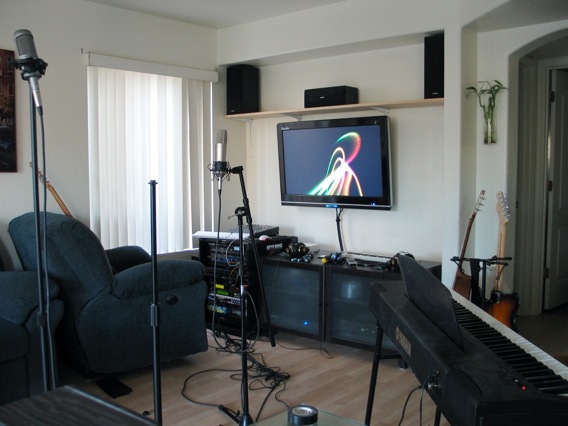
    20 years ago digital home recording wasn’t plausible. 10 years ago we started to see its potential, but most hobbyists (read: very cash-limited people) were limited to using still-primitive versions of multi-trackers such as Cakewalk, Cool Edit Pro or Cubase with either COTS Sound Blaster PCI cards or ridiculously over-priced, high-noise, high-latency specialty cards with break-out boxes such as the Lexicon Core 2. Running on Windows 95 or 98, we regularly struggled with the stability of the platform and device drivers. Today, you can have your own personal studio capable of producing DVD-quality recordings by adding a thousand dollars of equipment to your existing computer and music rig. Here’s my living room/home theater/recording studio/Mac haven, all driven by a single Mac Mini..
    home-studio-thumb.jpg
    Here’s are the core components..

    • Mac Mini (Intel).
    • Big 1080p LCD television/monitor. The Mac Mini drives this beast with a DVI-to-HDMI converter cable.
    • Logic Pro (Apple’s recording software). For my needs, it’s really either Logic Pro or Pro Tools. For various reasons I’ve stuck with Logic Pro run in a distributed manner with other Macs in the house using built-in Xgrid functionality over gigabit ethernet.
    • Headphone amp w/studio headphones. You need at least one good headphone set to properly lay down track on top of track, but when you have people over you can usually get by with three or four. This is too much load to be powered directly by the computer, so the dedicated headphone amp is necessary. I have a Behringer HA4700. (I didn’t want to add my Event 20/20 references monitors to the already cluttered layout, so I have them in another room.)
    • PreSonus FirePod. This is a truly outstanding input device for recording the entire band simultaneously. The unit is rack-mountable, connects via FireWire and optical cables, and has pristine noise-free pre-amps.
    • Microphones and stands.
    • Instruments. I have a full-size Yamaha keyboard (pictured), a bunch of vocal mics and guitars, and a rack of mediocre analog schwag. BYOI, whatever ‘I’ happens to be.

    If you’ve already got a Mac setup and some music equipment, grabbing Logic Express, PreSonus FirePod, decent vocal mic and a bunch of cables for $1K will turn your system into an audio powerhouse which your friends will envy.
  • Apple Aperture Features Explained For Non-Photographers

    The RAW format pictures produced by my Canon XTi are often in excess of 10MB. Couple this with “continuous shooting” and a fast CompactFlash card, and I can easily fill a 4GB’er in a couple days. I’ve used Apple’s Aperture for about a month now through the holidays and a friends wedding, and have been very pleased with the product.

    Aperture is more like ACDSee or Picasa than Photoshop. It’s about fine-tuning, managing projects, browsing, searching, sorting, packaging and publishing, and does neither layering nor psychedelic effects typically associated with digital picture manipulation. It’s iPhoto on crack. Here are a few features which I like.

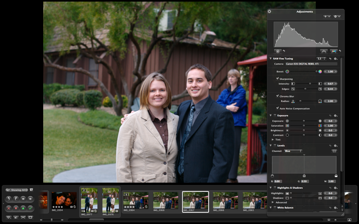
    1. Full-screen mode. This is similar to iPhoto’s full-screen mode, but with much better tools. The “adjustments” overlay provides typical white-balance and exposure controls, as well as a slick RAW-only section and easy-to-use tools for tweaking specific color ranges. All adjustments are non-destructive, so you can freely experiment with tools without worrying about being able to revert to the original. There is literally no “Save” button. The transport at the bottom is nice, too.
      full.png
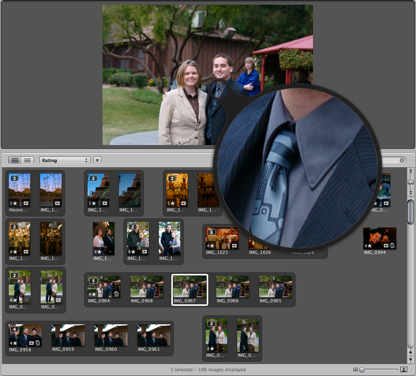
    2. Versioning & Stacking. Rather than copy/pasting files to make small adjustments while preserving the original, the versioning mechanism provides a great way to have many different versions of the same file, such as for different cropping ratios and color/sepia prints. Stacking allows you to make good use of continuous shooting on your camera by allowing you to select the best shot from a series and hide all others in the browser. The loop tool (see image) is a pin-point zoom pointer which works in both the browsing and viewing areas.
      browse.png
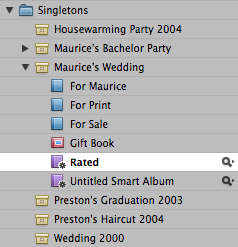
    3. Management. Understanding the various types of containers admittedly took me a few days to truly “get”. Once I did, however, it’s nice how Aperture combines typical concepts such as “Folders” and “Projects” with “Albums”, “Smart Albums” (search-based albums), “Light Tables”, “Books” etc. It’s easy to keep things organized while simultaneously being able to find things.
      picture-5.png
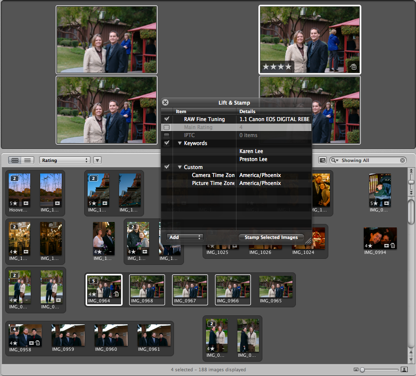
    4. Meta-data. In addition to handling EXIF/IPTC information and allowing changes at import time, making changing to images en mass is easy with the “lift and stamp” tools. Adjustments such as camera settings, tagged keywords and exposure changes are easily “lifted” off a select image and “stamped” onto others. This is especially useful when working with stacks.
      metadata.png
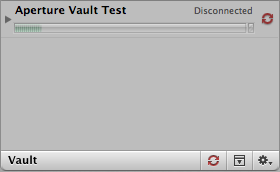
    5. Backup. Aperture vaults are basically files on backup volumes (such as removable firewire drives) which can be sync’d to when plugged in, kinda like having rsync built into the application.
      picture-6.png
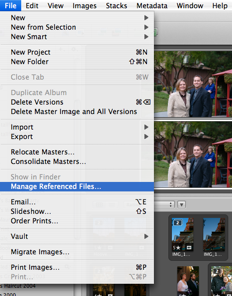
    6. Offline. When each photo is 10MB, you can’t keep every photo with you. You can, however, store the “master” on an external volume and keep a high-resolution preview and all meta-data with you at a fraction of the data size.
      picture-7.png

    If you’re using OS X and are somewhat interested in photography, I’m sorry, but you’ll probably want to bite the $279 bullet and buy Aperture, though I got my copy for about half that as a bundle deal with my camera body.
  • RAZR v3, Bluetooth, T-Mobile Internet & OS X

    Here’s the lowdown on setting up your Motorola RAZR to connect to the internet wirelessly via your bluetooth enabled Mac after signing up for T-Mobile internet services. I live in Arizona and have had no issues following these steps on several Macs.

    1. Grab this.
    2. Copy the “Motorola GPRS CID1” file into /Library/Modem Scripts
    3. Go to System Preferences -> Bluetooth -> Devices and click “Set Up New Device…”

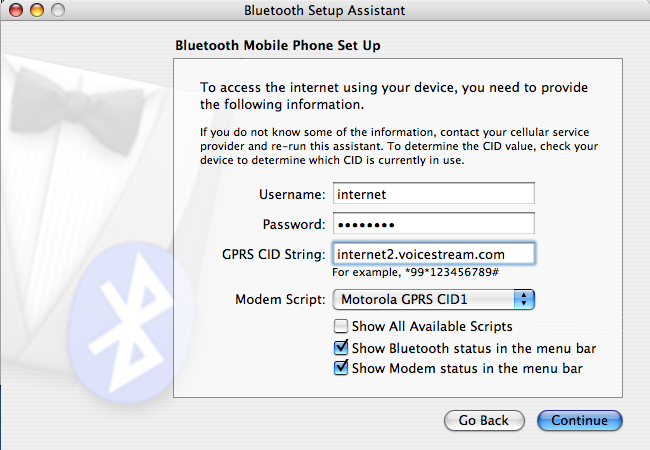
    4. After selecting the more obvious options to set up your phone, enter the connection settings as in the following screenshot. (The password is “internet”.)
      internet-setup.png

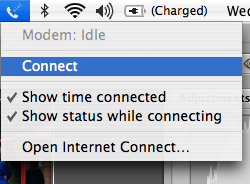
    5. After completing the wizard, select “Connect” from the new icon visible on the menu bar at the top of the screen.
      connect.png
      (Suggestion: manually “Disconnect” your phone when you’re done with the internet connection, as putting the computer to sleep while connected seems to cause issues when the system wakes up.)